Using short code [products] you can create a custom WooCommerce shop page or product page.
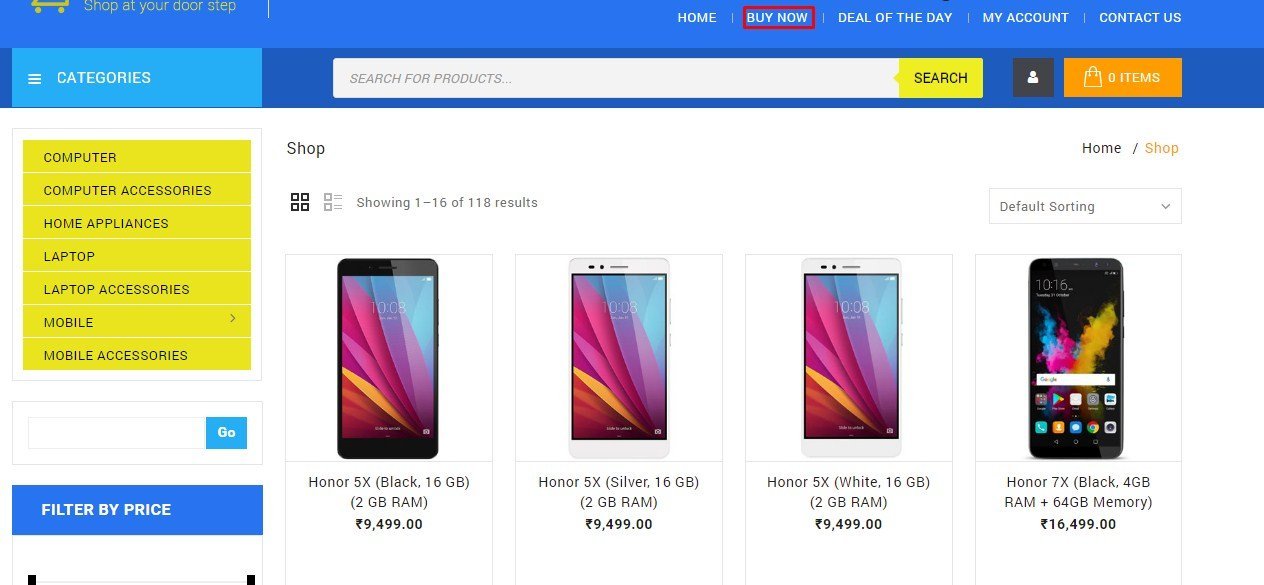
Some of the most useful short codes
[woocommerce_cart] – shows the cart page
[woocommerce_checkout] – shows the checkout page
[woocommerce_my_account] – shows the user account page
[woocommerce_order_tracking] – shows the order tracking form
[product_category] – Will display products in a specified product category.
[product_categories] – Will display all your product categories.
[products limit=”4″ columns=”4″ orderby=”popularity” class=”quick-sale” on_sale=”true” ]– will display popular products
[products limit=”4″ columns=”2″ visibility=”featured” ]– Will display featured products
[products limit=”4″ columns=”4″ orderby=”id” order=”DESC” visibility=”visible”] – Will Display product by descending order.
How to build a custom WooCommerce shop page
First, create a new page in WordPress and give it a name such as Shop or Offers. Next, add a shortcode block and paste the shortcode you need. Then publish the page and add it to your menu.
You can use several shortcodes on one page. For example, show featured products at the top and products on sale below them. As a result, the page works like a small landing page for a season or a campaign.
Tips for a custom shop page
- Keep the number of products per row low on mobile. Two columns usually read well.
- Use
limitso the page loads quickly, because a long grid slows it down. - Check that the default Shop page still works, because WooCommerce still uses it as the main product archive.
- See the full list of options in the official WooCommerce shortcodes guide.
Want a shop page designed around your products? See our WooCommerce development services and our e-commerce website development in Bhubaneswar.
See also: Create location restriction in woocommerce and How to show product variation dropdowns in product archive page.